Table of Contents
What is Google Search Console?
Originally known as Google Webmaster Tools, Google Search Console (GSC) is a free service from Google that allows site owners to monitor their overall site health and performance using data directly from Google.
Google Search Console shows you how Google sees and uses your site, what queries trigger your pages, how often they show up (impressions), how many clicks you get, indexing issues, and lets you request re-indexing when you update pages.
You don’t need it for your site to work, but without it you’re blind to what’s happening in Google search.
How does Google Search Console effect SEO?
Why does this matter for SEO specifically? Because you can’t improve what you can’t measure. Search Console helps you monitor your website traffic, optimize your rankings, and make informed decisions about how your site appears in search results.
The data can also influence technical decisions for the website and support more sophisticated marketing analysis when used alongside tools like Google Analytics, Google Trends, and Google Ads. No other SEO tool in the industry can compete with the features and information GSC provides for improving SEO performance, both technical and content-wise; and it costs nothing.
Setting it up is the first step toward understanding what Google actually thinks of your site. This guide will walk you through the entire process.
How to set up Google Search Console
Despite its powerful feature set, setting up Google Search Console is surprisingly straightforward. You do not need to be a developer or have any technical background to get it done. The whole process takes about 10 to 15 minutes, and Google walks you through each step. By the end of it, your website will be connected and Google will start collecting data you can actually use.
Step 1: Create account
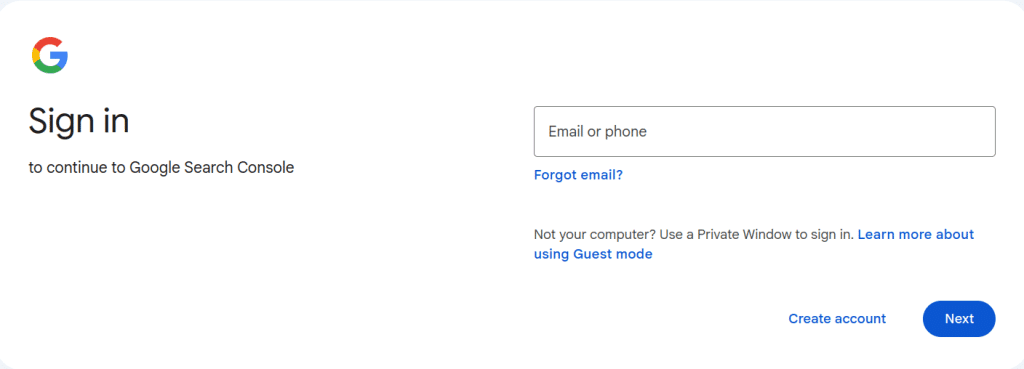
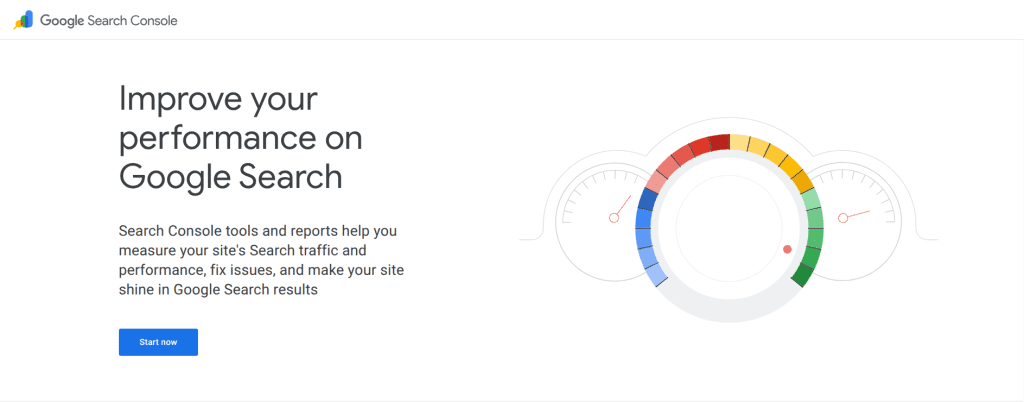
1. Go to: https://search.google.com/search-console/about
2. Log in with your preferred gmail account (make sure it’s an account that you want associated with your website)
3. Click “Start now“
Step 2: Add property
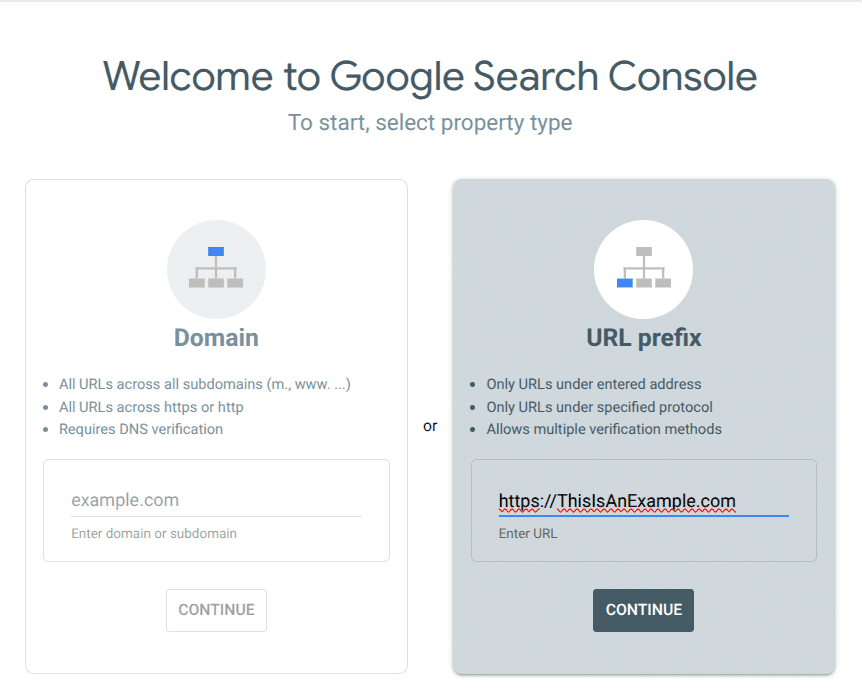
Add your website property to start monitoring and improving your site’s performance
1. Choose “URL Prefix” (recommended for beginners)
2. Enter your website’s URL
3. Click “continue“
Step 3: Verify website ownership
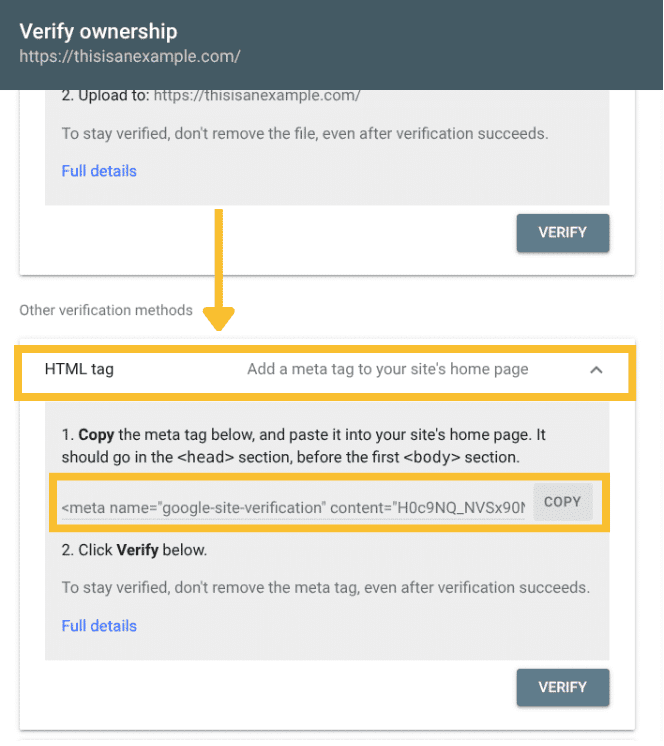
1. Copy the HTML tag from GSC
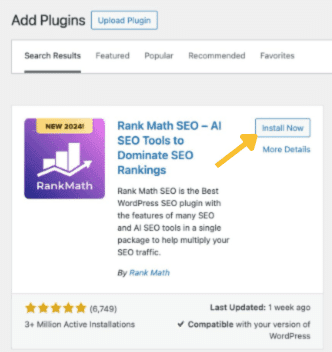
2. Install RankMath SEO plugin in WordPress (or any other SEO plugin will also do)
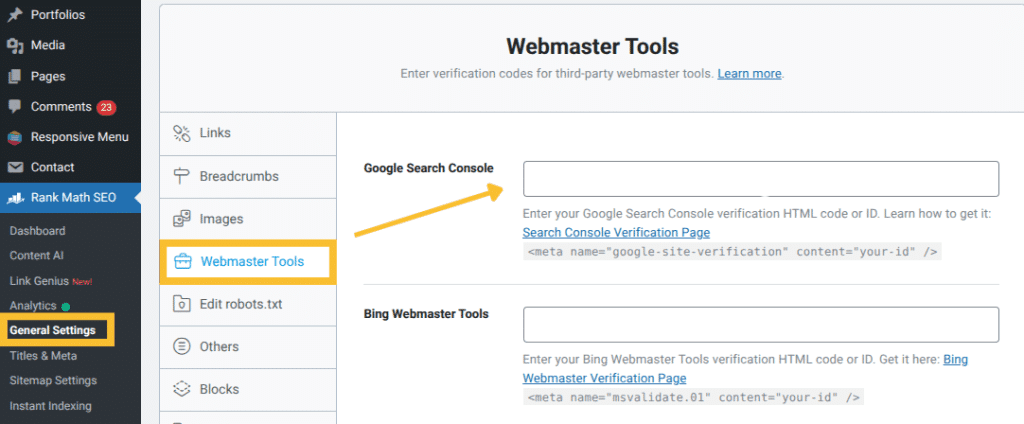
3. Go to RankMath general settings > Webmaster tools
4. Paste the HTML tag into the “Google Search Console” box and click “save changes“
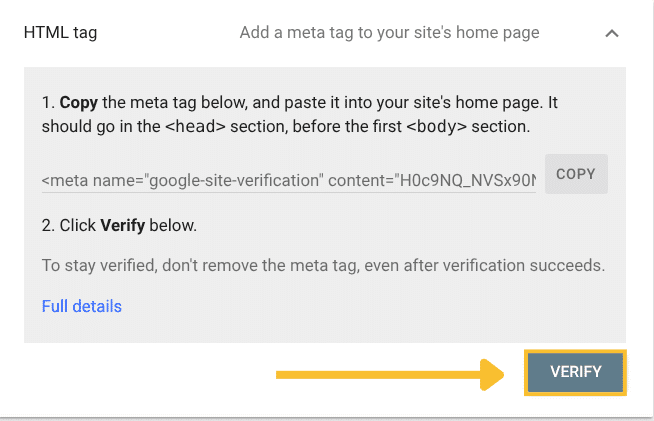
5. Go back to GSC and click “verify“
Step 4: Submit sitemap
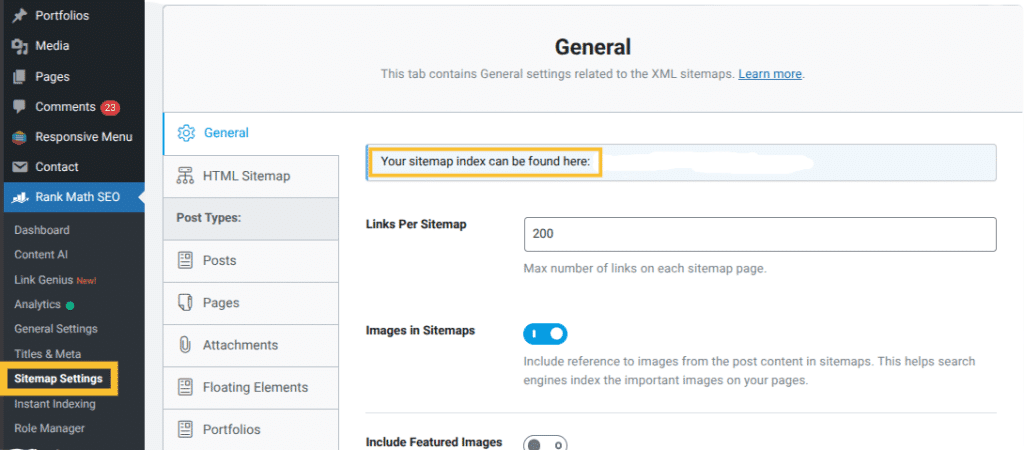
1. Go to RankMath Sitemap settings > copy your sitemap index
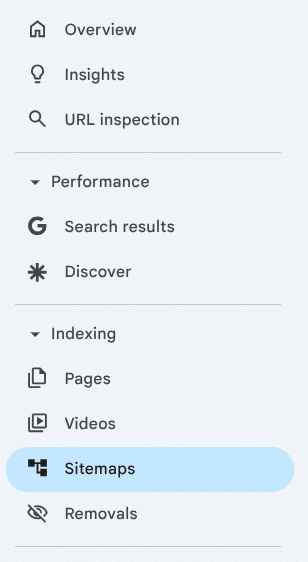
2. On the left of your GSC dashboard click on the menu item titled “Sitemaps“
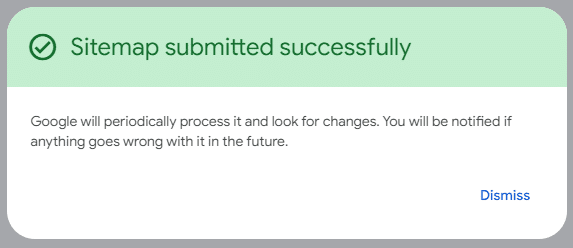
3. Paste your sitemap index and click “Submit“

A few things to keep in mind when setting up Google Search Console
Now that your site is connected, there are a few things worth knowing before you start digging into the data.
- Data doesn’t appear instantly. For a new site, it can take days or even weeks before any meaningful data starts showing up, because Google needs time to crawl your pages and collect enough information to report back. Don’t panic if your dashboard looks empty at first, that is completely normal.
- You don’t need to check it every day. There is no need to sign in to the tool every day. If Google finds new issues on your site, you will receive an email alert from Search Console. That said, checking your account roughly once a month, or whenever you make significant changes to your site, is a good habit to build.
- Submit your sitemap. Pages from your site can be discovered by Google without this step, but submitting a sitemap will speed up discovery and let you monitor related information directly in GSC. It’s like giving Google a map of your site rather than making it figure things out on its own.
- Use the Domain property if you can. Adding a domain property gives you the most complete view of your website in GSC because it includes all protocols, subdomains, and paths under the domain. The URL prefix option is simpler and still useful, but the domain property paints a fuller picture.
- GSC works best alongside other tools. On its own, Search Console is already great. But pairing it with Google Analytics gives you a much more complete view of how users find and interact with your site. The two tools complement each other well and are both free.
FAQ
1. What is Google Search Console?
Google Search Console is a free tool provided by Google that lets website owners monitor how their site performs in Google Search. It shows you which keywords bring people to your site, whether your pages are properly indexed, and if there are any technical issues that could be affecting your visibility.
2. Do I need Google Search Console if I already have Google Analytics?
es, and the two work well together. Google Analytics tells you what visitors do once they land on your site. Google Search Console tells you how they found it in the first place. They answer different questions, so using both gives you a much more complete picture.
3. How long does it take for data to show up in Google Search Console?
It can take anywhere from a few days to a few weeks for data to start appearing, especially for newer websites. Once GSC starts collecting data, it builds up quickly and you will be able to spot trends within the first month or two.
4. Is Google Search Console free?
Yes, completely. There are no paid tiers or premium features. Every tool and report inside GSC is available to any website owner with a Google account, at no cost.
5. How often should I check Google Search Console?
Once a month is enough for most website owners, unless Google sends you an alert about a specific issue. It is also worth logging in any time you make major changes to your site, such as publishing a lot of new content, redesigning pages, or migrating to a new domain.